Most WordPress sites running Yoast or Rank Math have schema handled to some degree. The plugins do real work. They output a graph that includes WebPage, WebSite, Organization, BreadcrumbList, and Article on posts. Rank Math goes further with built-in support for Product, Recipe, Event, LocalBusiness, and several other types out of the box.
But here’s the problem most site owners don’t think about. All of that schema lives inside the plugin’s database structure. The custom Product offers you configured. The event details you entered. The FAQ pairs you filled in. All of it stored in plugin-specific tables or post meta keys that only that plugin knows how to read.
The moment you switch away from an SEO plugins, most of that schema work disappears with the old plugin. Yes there are some import options when going from one plugin to another, but not always. Also, what if a plugin is deprecated? What then?
There’s a better way. This note covers a simple method to add custom schema to any WordPress page using a custom field and a small function in your child theme. The schema lives with the post, not with the plugin. It survives plugin changes, theme updates, and platform migrations. It gives you complete control over the JSON-LD without UI limitations, doesn’t require any Pro upgrades, and works with every modern schema type.
Why Bother With Schema in the First Place
Three layers to the answer, and they’re all stronger now than they used to be.
Layer 1: Google Rich Results
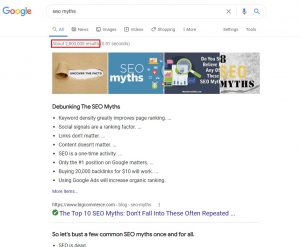
A lot of the arguments I see against schema mention that you do not need schema to rank in Google Search. While that is absolutely true, schema does enable visible enhancements in Google search results. These show up directly in the SERP, increase CTR, and take up more real estate. The current major rich result types still active in Google:
- Review stars on product pages, recipes, software, and local business listings (Review and AggregateRating schema)
- Product availability, pricing, and stock indicators (Product schema with Offer)
- Recipe details including cook time, calories, ratings, and image (Recipe schema)
- Event listings with dates and locations (Event schema)
- Video carousels (VideoObject schema)
- Job postings in Google’s job board (JobPosting schema)
- Breadcrumb paths in the SERP listing (BreadcrumbList schema)
- Sitelinks search box (WebSite with SearchAction)
- Local business info with hours, address, ratings (LocalBusiness schema)
- Movie, TV, and book listings
These deliver immediate CTR benefits and more SERP real estate. The visible payoff.
Layer 2: What Google Still Uses Schema For (Even Without Rich Results)
Google has been narrowing the rich results landscape. HowTo rich results were deprecated in September 2023. FAQ rich results were officially discontinued on May 7, 2026, with Search Console support being phased out through August 2026.
But Google explicitly said in the FAQ deprecation notice that they will continue using FAQPage structured data to better understand pages. The visible rich result is gone. The semantic signal isn’t. FAQ and HowTo schema still help Google understand what your page is about. They just don’t earn a visual SERP enhancement in Google anymore.
Layer 3: Other Platforms and AI Search
Again, many opponents of schema will tell you that you don’t need it to rank in Google Search, but Google is not the only platform out there that can send your website real web visitors. These are a few examples beyond Google where schema can improve your visibility across the internet:.
Bing uses the same Schema.org vocabulary as Google. By extension, ChatGPT Search uses Bing’s index for retrieval, so Bing schema directly affects ChatGPT visibility.
Pinterest Rich Pins use schema markup for three pin types: Product (price, availability, description), Recipe (ingredients, cook time, ratings), and Article (headline, description, author). For e-commerce, food, and publishing sites, Rich Pins drive measurable additional traffic.
Voice assistants (Google Assistant, Siri, Alexa) use structured data to extract concise answers for spoken queries.
AI search citation rates are where the argument lands hardest right now. The AirOps and Kevin Indig study covered a few weeks ago found that pages with JSON-LD schema markup have a 6.5 percentage point citation advantage (38.5% vs 32%). The top-performing types: MedicalWebPage at 47%, BreadcrumbList at 46.2%, FAQPage at 45.6%, Organization at 44.3%, WebSite at 40.6%. FAQPage drives AI citation even though Google killed the rich result.
What Yoast and Rank Math Actually Do (And Where They Fall Short)
To be fair, both plugins do real work and this note isn’t pretending otherwise.
Yoast outputs a sophisticated schema graph with WebPage, WebSite, Organization, BreadcrumbList, Article, Person/Author, and Image, all linked through @id references. It supports nesting and linked entities. It includes FAQ and HowTo blocks that auto-add schema (though both rich results are now gone in Google). For schema types beyond the base graph, Yoast relies on third-party plugin integrations (Easy Digital Downloads, WP Recipe Maker, The Events Calendar) or developer access to their Schema API.
Rank Math (free) covers more schema types out of the box than Yoast: Article, Book, Course, Event, JobPosting, LocalBusiness, Music, Person, Product, Recipe, Restaurant, Service, SoftwareApplication, Video. It includes a fill-in-the-blanks Schema Generator for these types.
Rank Math Pro adds a Custom Schema Builder, Schema Templates, and the ability to extend existing schema with additional properties.
So both plugins handle a lot. The issues come down to five things.
1. Auto-populated schema often misses page-specific details. When Rank Math outputs Product schema for a page, it’s pulling from generic fields. Specific offer details, GTIN, brand information, multiple price points, return policies, individual reviews tied to ratings: these often aren’t captured by default or require manual entry in plugin-specific fields. The schema is technically present but isn’t communicating the full specificity of what’s on the page.
2. Advanced features are gated behind Pro versions. Rank Math’s Custom Schema Builder, Schema Templates, and schema extension features all require Rank Math Pro. The free version handles common types but not custom or extended ones.
3. Yoast requires either compatible third-party plugins or developer code for most specific types. If you want Product schema but you’re not using WooCommerce, Recipe schema but you’re not using WP Recipe Maker, Event schema but you’re not using The Events Calendar, you’re either installing additional plugins or writing code against Yoast’s Schema API.
4. You can’t easily test new or rarely used schema types. Schema.org defines hundreds of types and properties, and the vocabulary keeps expanding. SEO plugins support a fraction of what’s available, focused on the most common types.
If you want to test something less common (Dataset for data publishers, ClaimReview for fact-checking, Quiz for educational content, MedicalScholarlyArticle for medical publishing, DiscussionForumPosting, TouristAttraction, or any newer addition to the Schema.org vocabulary), the plugins typically can’t help.
With custom JSON-LD, you can use any schema type you want regardless of whether your plugin supports it. This matters for niche industries, experimental implementations, and getting ahead of trends before everyone else catches on.
5. You can’t easily add entity linking. Modern schema can link specific entities to their canonical references in Wikidata, Wikipedia, and Google’s Knowledge Graph using properties like sameAs, about, and mentions.
This is how you tell search engines and AI systems exactly which “Apple” or “Mercury” or “Springfield” your content is referring to. Yoast and Rank Math handle entity linking for the organization or author of the site, but they don’t have practical UIs for linking the entities mentioned in your actual content.
With custom schema, you control exactly which entities your content is about, with explicit references to authoritative entity databases. This is a deeper topic, and I’ll come back to it in its own note in the future.
6. Portability and control. This is the one that matters most over the long run.
Schema generated through a plugin lives in the plugin’s database structure. The custom fields, the configured options, the per-page settings, all of it stored in plugin-specific tables or post meta keys that only that plugin knows how to read.
The day you switch plugins, most of that schema work disappears with the old plugin. The Product offers you carefully configured in Rank Math’s Schema Generator. The FAQ pairs you entered through Yoast’s FAQ block. The event details you set up in The Events Calendar. All of it can be lost and leave you starting from zero.
The same problem exists if the plugin changes how it stores data in a major update. Or if you migrate to a different platform entirely. Or if the plugin gets discontinued. Schema generated through a plugin is rented, not owned. The plugin holds the keys.
Schema in a custom field is different. It lives with the post in WordPress’s native wp_postmeta table. It’s portable across themes, plugins, and even WordPress versions. Switch SEO plugins tomorrow and your schema is still there. Export your site and your schema goes with it. Migrate to a different platform and the schema can migrate with the content. The schema is owned, not rented.
That’s the real argument for adding custom schema this way, even when your plugin technically supports the schema type you need.
How to Add Custom Schema to WordPress
The implementation has six parts: disable plugin schema, set up a child theme (if you are not already using one of these you really should be), add a custom field, add a function to your child theme, generate the schema, and validate it.
Step 1: Disable Your SEO Plugin’s Schema Output
Before adding custom schema, disable your existing plugin’s schema output. Two reasons.
To avoid duplicate or conflicting schema. If your plugin is outputting Article schema for a post and you add a custom JSON-LD block via the function below, you’ll have two Article schemas on the page. Google can handle this in some cases, but it’s not ideal, and it creates ambiguity about which schema is authoritative.
To make the migration to custom schema complete. The whole point of moving to custom schema is portability. If you leave the plugin’s schema active, you still have schema living in the plugin’s database structure. Disabling it entirely means your schema is fully in custom fields, fully under your control, and fully portable.
For Yoast: go to Yoast SEO > Settings > Schema settings to disable schema output at the content type level. For full disabling across the site, you can use the wpseo_json_ld_output filter.
For Rank Math: go to Rank Math > Dashboard > Modules and toggle off the Schema module.
If you are using a different plugin, the options will be similar. If you can’t find it, consult your plugins documentation.
A practical note. Disabling plugin schema is a significant change. Make sure you have replacement schema ready before doing it across your whole site. Don’t disable on a Friday afternoon. Migrate page by page.
Set up the function first, add custom schema to your highest-traffic pages, validate everything is working, then disable the plugin’s schema output. The goal is full custody of your schema, not a gap where pages have no schema at all.
Step 2: Use a Child Theme
Editing functions.php directly on a parent theme means your changes get overwritten the next time the theme updates. Always use a child theme. If you don’t have one, create one or use a code snippets plugin like Code Snippets (formerly WPCode) to run the function instead. Either approach is fine, but I highly recommend using the child theme approach so you are not adding an additional plugin. Plugins add bloat to a site and potential vulnerabilities.
The function below works the same way regardless of where it lives.
Step 3: Add a Custom Field for Schema
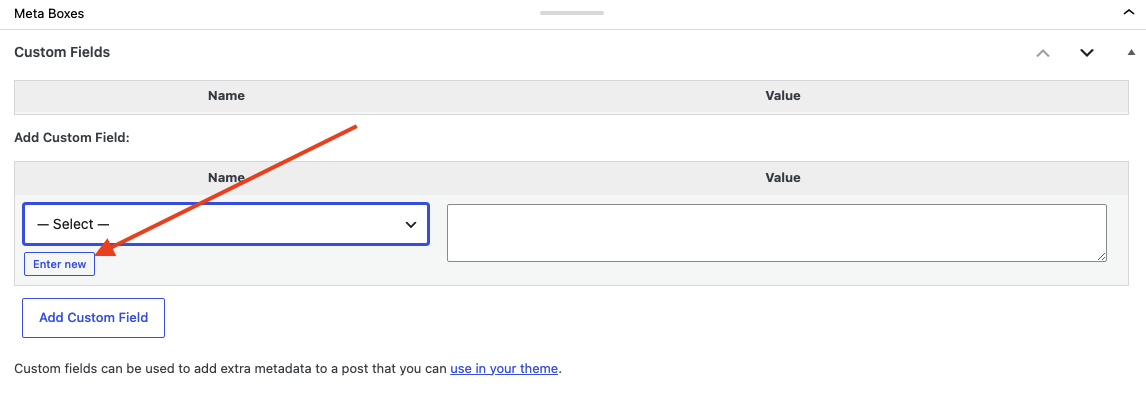
In your page or post editor, scroll down to the Custom Fields section. If you don’t see it, you may need to enable it under Screen Options at the top of the editor, or install Advanced Custom Fields if your editor doesn’t expose custom fields easily.
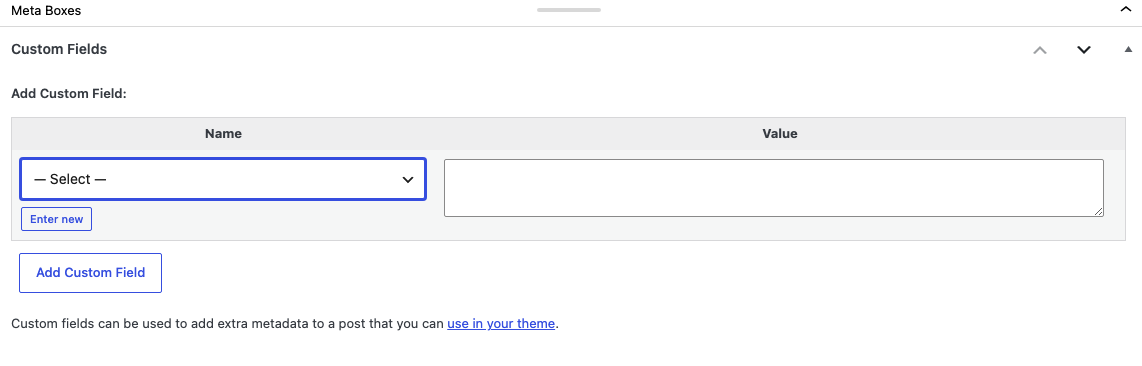
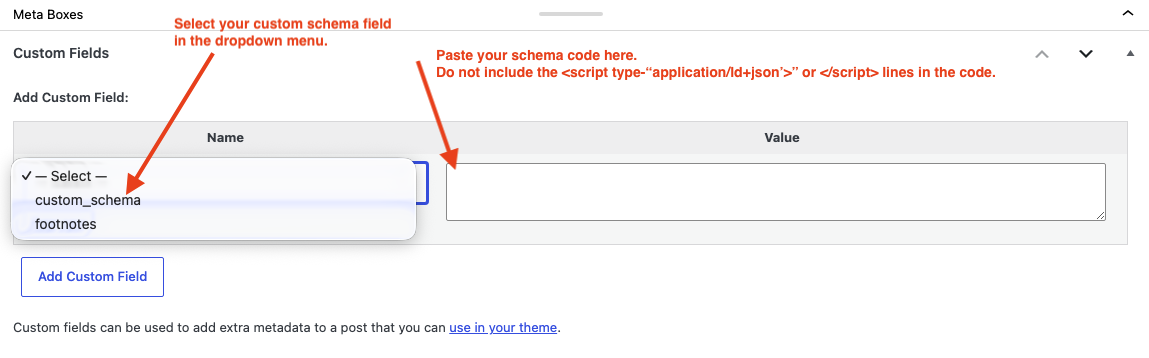
Create a custom field with the name custom_schema. You can use a different name if you want. Just be sure to modify the code below to match your field name. The value will be the full JSON-LD schema you want to output on that specific page.
Step 4: Add the Function to Your Child Theme’s functions.php file.
You find this file in the WordPress menu under Appearance >> Theme File Editor.
Here’s the function:
/**
 * Output custom JSON-LD schema in the page head.
 * Reads from the 'custom_schema' custom field on each page or post.
 */
function seopub_output_custom_schema() {
    // Only fire on singular content (pages, posts, custom post types).
    if ( ! is_singular() ) {
        return;
    }

    $schema = get_post_meta( get_the_ID(), 'custom_schema', true );

    if ( empty( $schema ) ) {
        return;
    }

    echo "\n" . '<script type="application/ld+json">' . "\n";
    echo $schema . "\n";
    echo '</script>' . "\n";
}
add_action( 'wp_head', 'seopub_output_custom_schema' );
Paste the above code into the functions.php file. Remember to change the ‘custom_schema’ part in the code if you used a different name for your custom schema field.
In plain language, the function checks whether the current request is for a single page, post, or custom post type. If yes, it reads the value of the custom_schema custom field for that specific content. If there’s a value, it outputs it as a JSON-LD script tag in the page’s <head>. If there’s no value, the function exits silently.
Schema only appears on pages where you’ve explicitly added it. No templated output for every page. No plugin database dependency.
Step 5: Generate Your Schema
For each page where you want custom schema, build the appropriate JSON-LD. The easiest options:
- Schema.org directly for the full reference of available types and properties
- Schema Markup Generator from Merkle for common types with a fill-in-the-blanks interface
- Schema App or other paid tools for more complex implementations
- Or my favorite, just use Claude or ChatGPT. Give them the page URL or a content draft and tell them what schema you want on the page.
Whatever type you’re implementing, the schema needs to accurately reflect what’s actually on the page. Don’t claim review stars you don’t have. Don’t list product prices that aren’t real. Google has been cracking down on schema that doesn’t match page content.
Insert this into the custom field on the WordPress page or post you want it added to.
Step 6: Validate Before Publishing
Always validate your schema before relying on it. Two free tools:
- Schema Markup Validator at validator.schema.org
- Google’s Rich Results Test at search.google.com/test/rich-results
If the JSON is malformed, both tools will catch it. The Rich Results Test will also tell you whether your schema is eligible for any of Google’s current rich result types.
A Few Practical Examples
What this looks like in practice across common page types:
A product page gets Product schema with name, image, description, brand, offers (price, availability, currency), and aggregateRating if you have eligible reviews.
A service page gets Service or LocalBusiness schema with service areas, hours, contact info, and any relevant offers.
A blog post with frequently asked questions gets FAQPage schema with the actual Q&A pairs. The rich result is gone in Google, but the schema still helps with understanding and AI citation.
An event page gets Event schema with date, location, organizer, and ticket info.
A how-to article gets HowTo schema. Same situation as FAQ. Google killed the rich result, but the schema still helps AI systems and other platforms parsing the content.
Adding SEO entities to schema markup translates your website’s content into a language search engines understand. Instead of relying on keyword matching, this semantic approach accurately defines your brand’s people, places, and concepts, allowing you to control how machines interpret your data. (If you are unfamiliar with this practice, it is something we will cover in a future note.)
The point isn’t to add schema for the sake of adding schema. It’s to communicate the specific structured information that’s actually present on the page, in a format machines can read, in a way that lives with your content rather than your plugin.
The Takeaway
Yoast, Rank Math, and similar plugins handle schema. Both do real work. This note isn’t arguing against using them for everything else they do.
But the schema they generate lives in their database structures. The day you switch plugins or platforms, that schema work disappears with them. The Product offers you configured, the events you set up, the FAQ pairs you entered. Entity relationships you added. All of it tied to a plugin you may not be running in three years.
Custom schema in a custom field is different. It lives with the post. It survives plugin changes, theme updates, and platform migrations. It gives you complete control over the JSON-LD without UI limitations or Pro upgrades. And it works for every modern schema type, including the ones that drive Google rich results, Pinterest Rich Pins, voice assistant answers, and AI search citation.
A custom field, a small function in your child theme, and a few minutes per page. The schema you write today will still be there in five years, regardless of what plugins you’re running.
If you’re going to invest the time to add custom schema, own it.